
Note: Auto only supports 1K. 1:1 does not support 4K.
AI Inpainting for Precise Image Edits
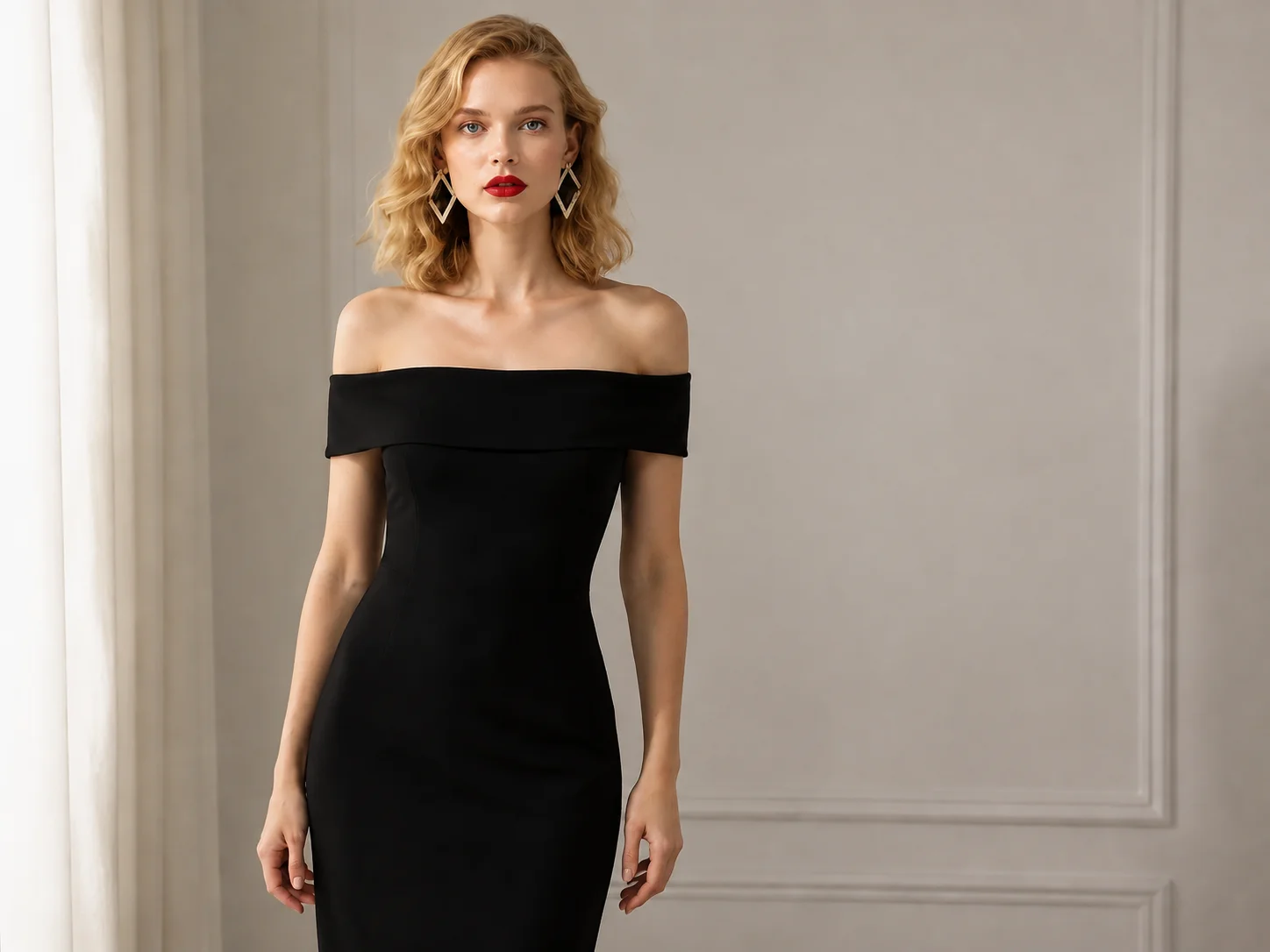
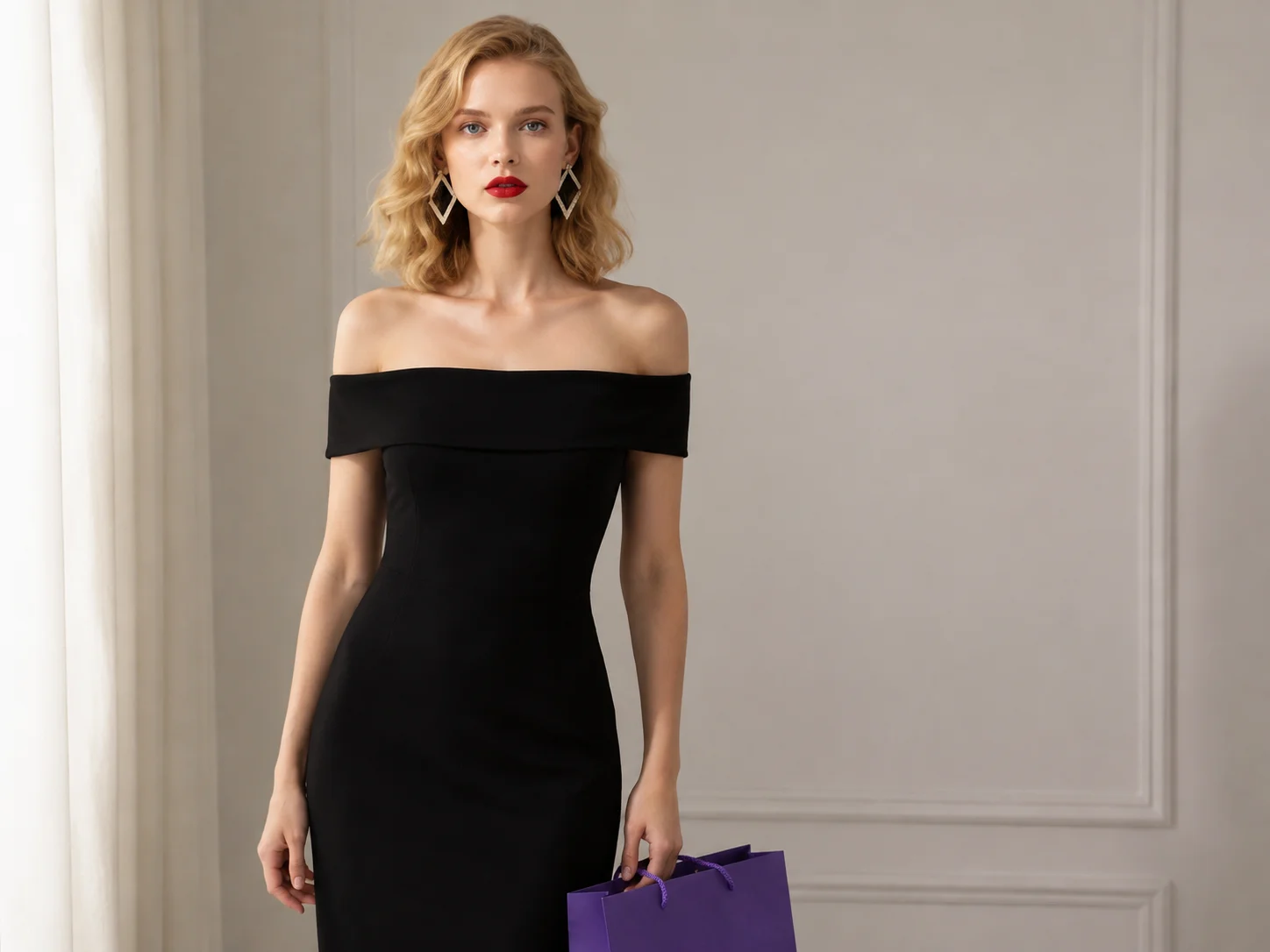
Upload an image, brush over the area you want to change, and describe the result in a prompt. The selected region is rebuilt to match the surrounding texture, lighting, color, and composition.
How to Use AI Inpainting in 3 Steps
Upload Your Image
Choose the photo or artwork you want to edit and load it into the inpainting workspace.
Select and Describe the Edit
Brush over the object, damage, or detail you want to change, then enter a clear prompt describing what should appear.
Generate and Download
Generate the edit, review how it blends with the original image, and download the result when it matches your intent.
Why Choose Qimg AI for AI Inpainting
Edit Only the Area You Select
Use a brush to define exactly where the change belongs, leaving the rest of the image and its composition intact.
Blend New Details Naturally
The edit considers nearby textures, colors, lighting, and shadows so removed, repaired, or replaced content fits the surrounding scene.
Handle Repairs and Creative Changes
Clean up distractions, restore damaged parts, replace objects, or add new visual elements through the same prompt-guided workflow.
Who Use Qimg AI
Creators
Remove distractions, add imaginative details, and refine social posts or artwork without rebuilding the full composition.
Designers
Explore object replacements, visual variations, and local corrections while keeping the original design direction consistent.
Marketers
Adjust product shots and campaign visuals by cleaning up unwanted elements or testing focused content changes.
FAQs About AI Inpainting
AI inpainting edits a selected part of an image by analyzing the surrounding scene and rebuilding that area according to your prompt.
You brush over the target area and describe the intended change. The model then generates content that follows nearby texture, color, lighting, and composition.
Yes. Select the object, then describe whether it should disappear or be replaced. The empty region is reconstructed to fit the surrounding image.
Yes. It can help rebuild selected scratches, blemishes, or missing details when the surrounding image provides enough visual context.
A precise selection and a clear prompt help the generated area follow the original image's perspective, lighting, texture, and color balance.
Discover More on Qimg AI
Qimg AI is your go-to AI image toolkit for generating, editing, and enhancing photos and artwork.
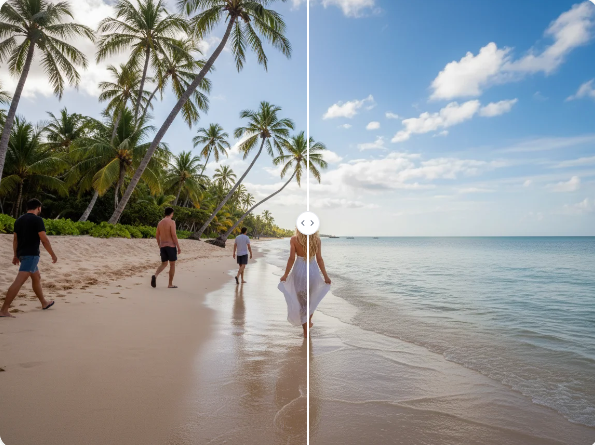
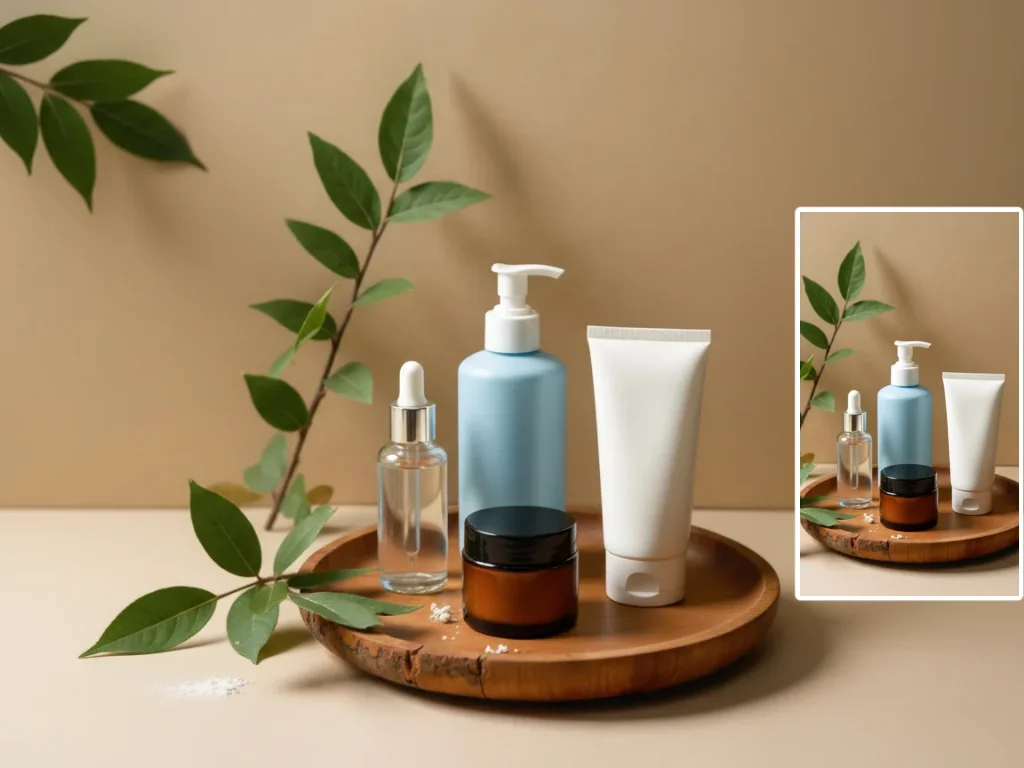
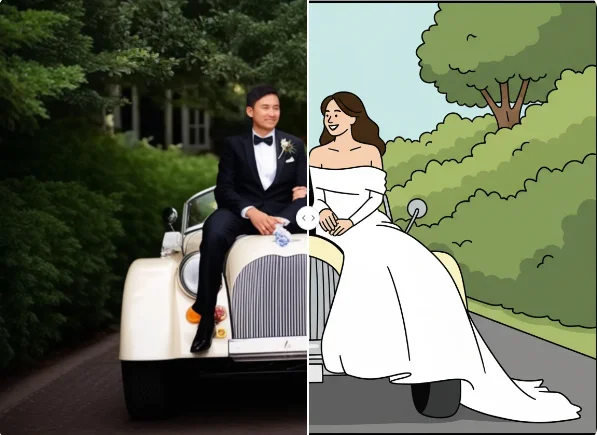
Edit Images with AI Inpainting
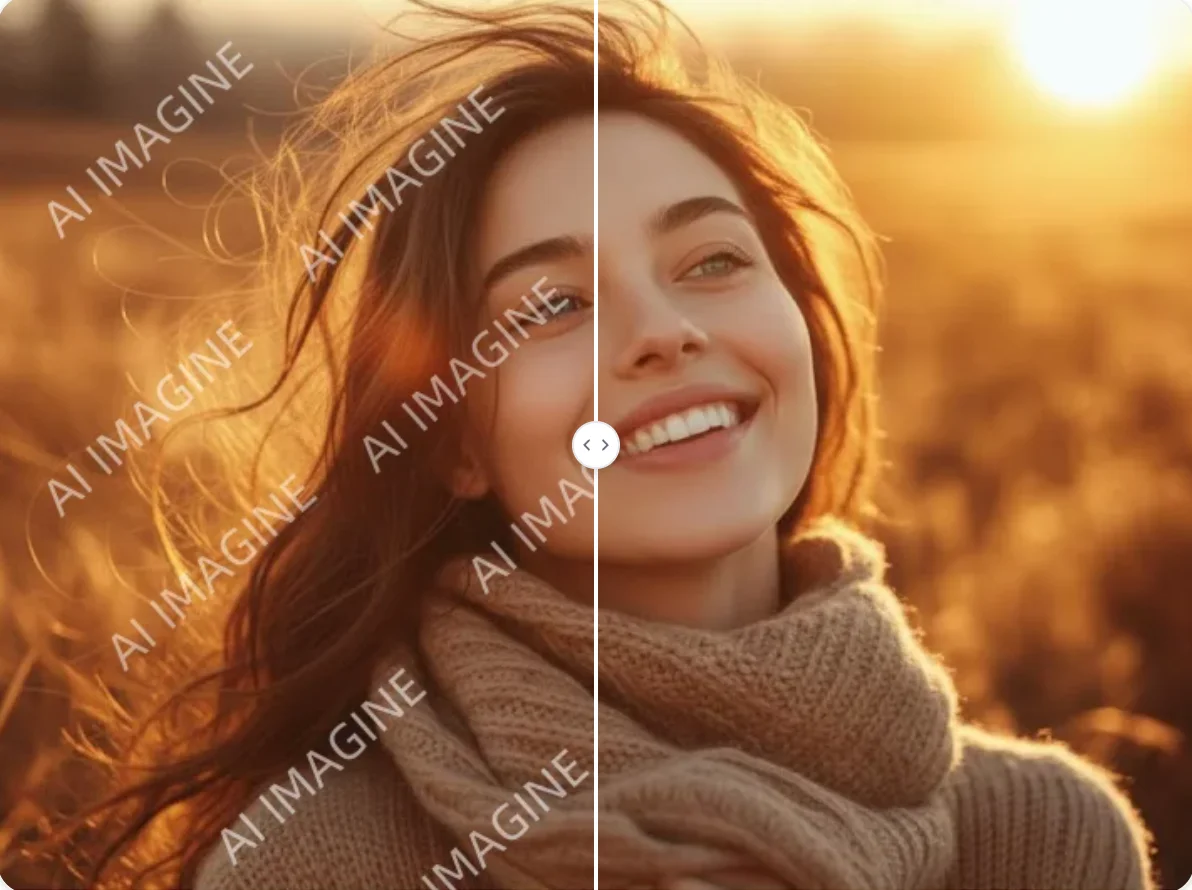
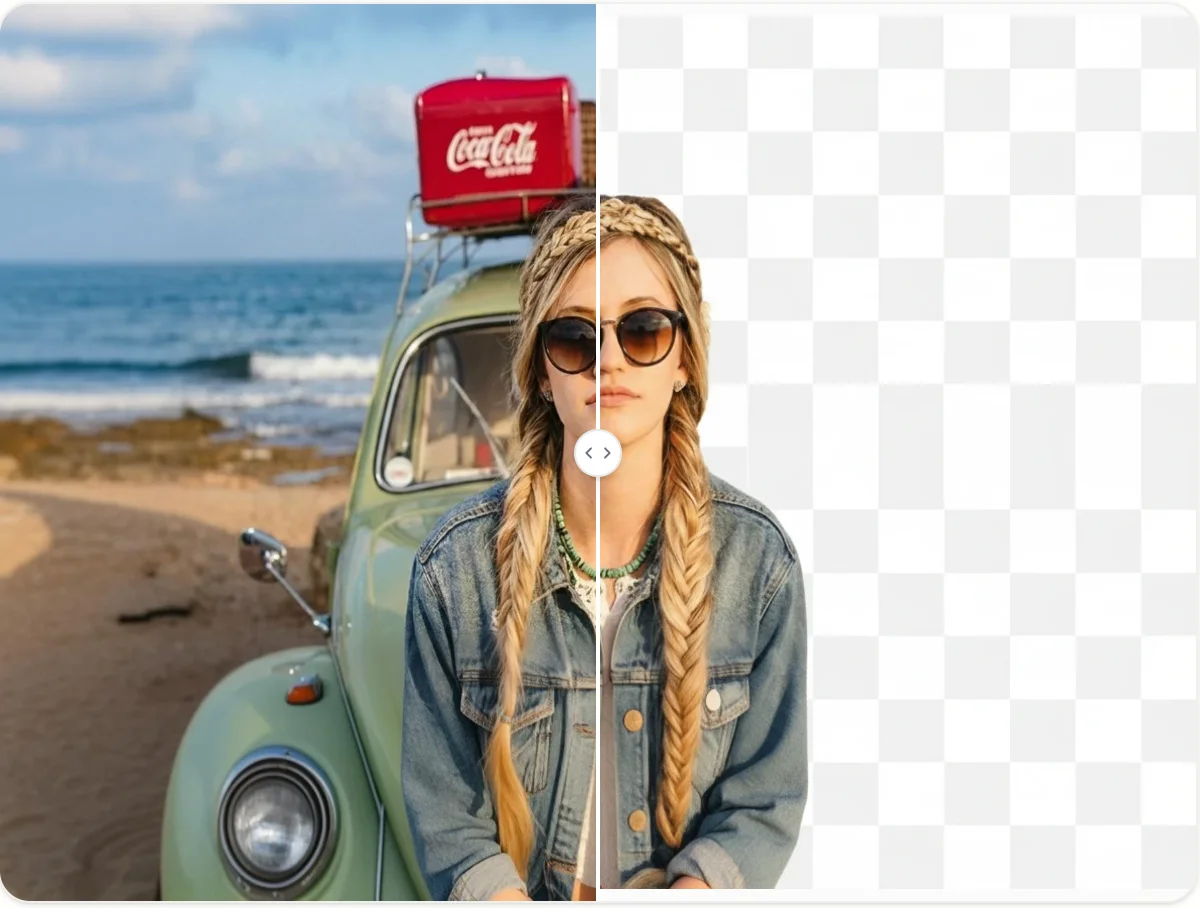
Upload an image, select the area to change, and turn a simple prompt into a clean repair, removal, replacement, or creative edit.