
Note: Auto only supports 1K. 1:1 does not support 4K.
Darken Image
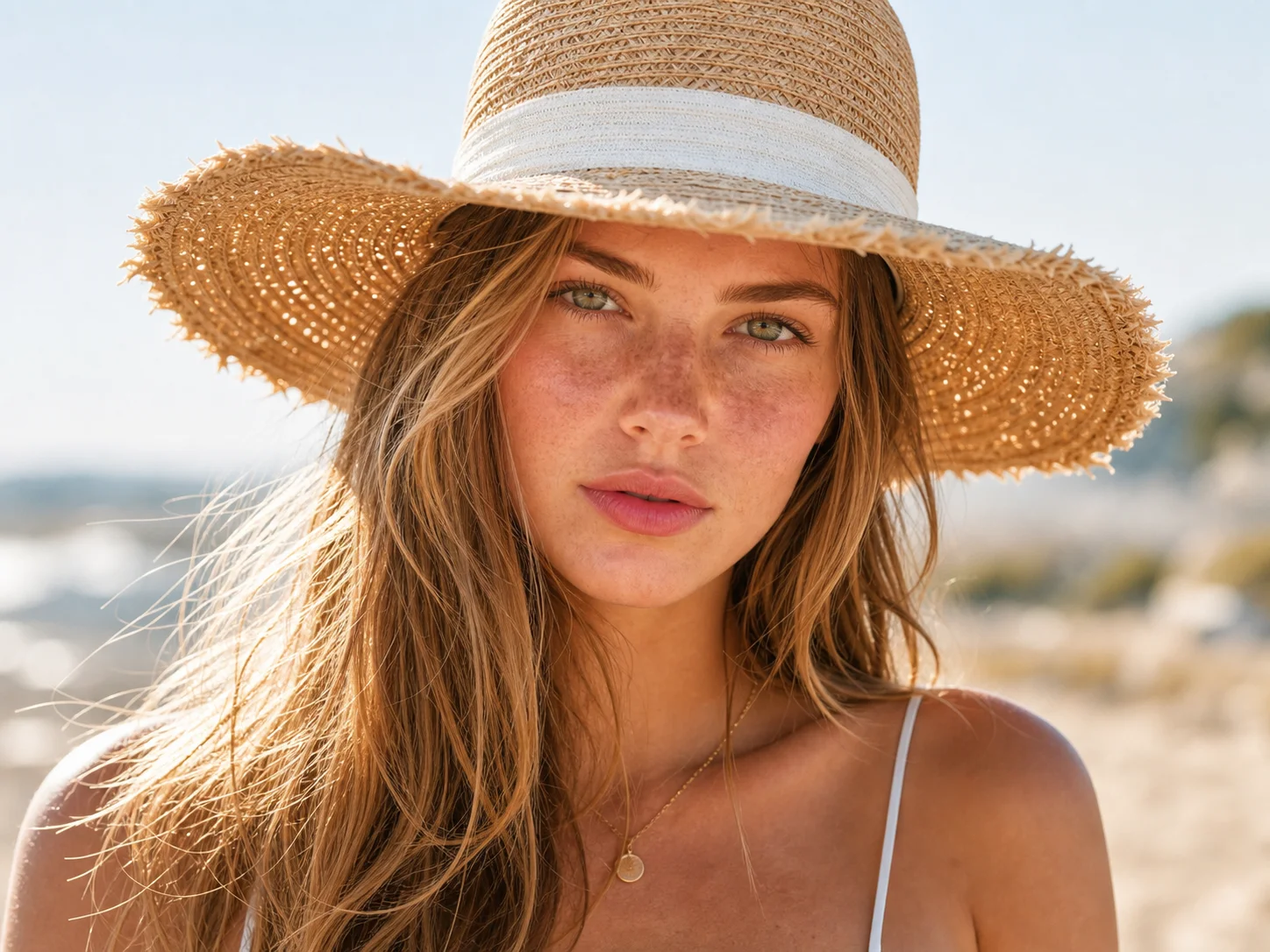
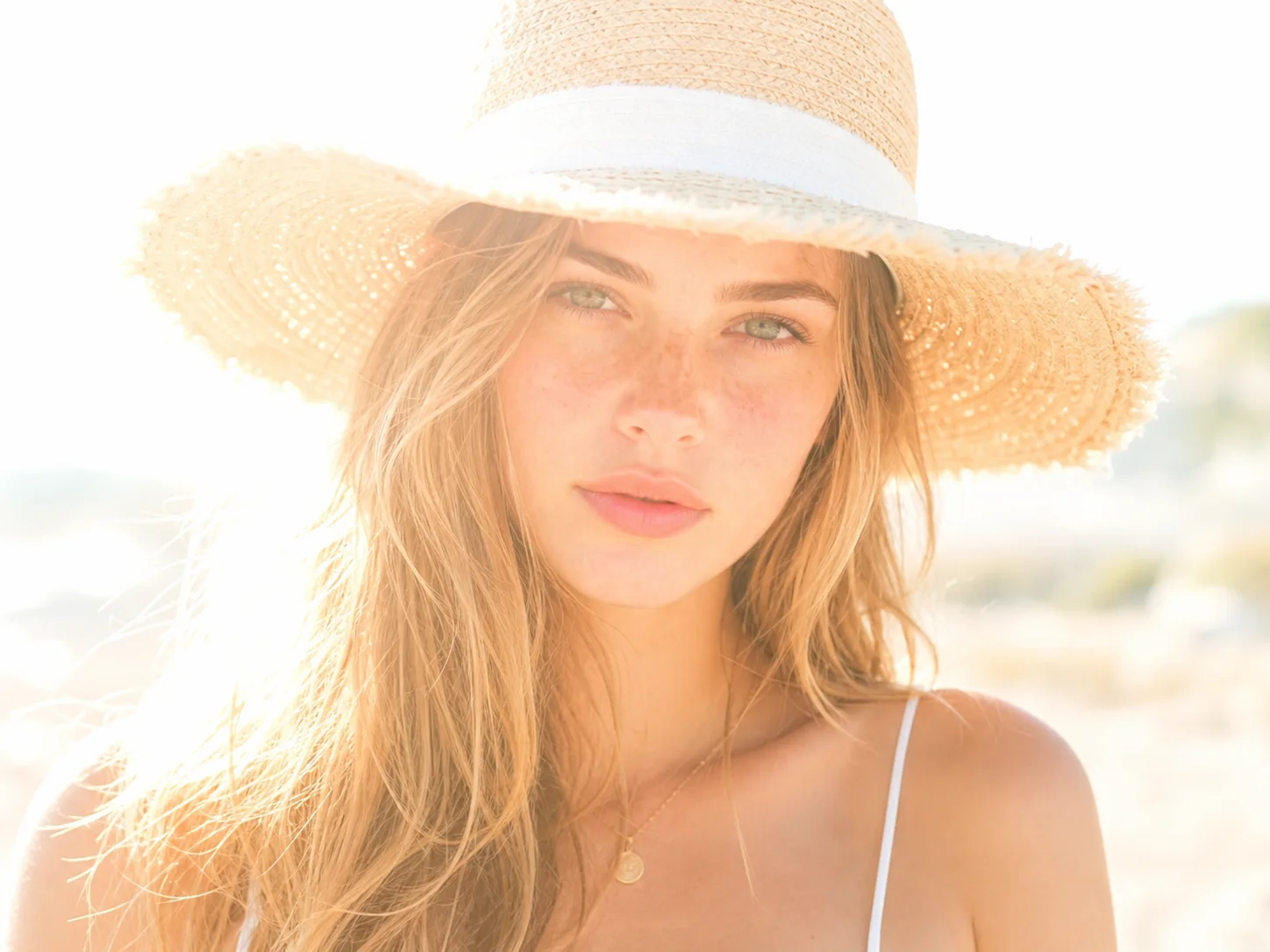
One of the most common editing problems is the opposite. Highlights can look washed out, skies can lose detail, and faces can appear overly bright after shooting in strong sunlight.
How to make an image darker?
Upload the image you want to darken
Select a photo that appears too bright, overexposed, or lacking contrast. The tool works with portraits, product photos, travel pictures, and digital artwork.
Adjust the image brightness
Qimg AI analyzes the image and creates a darker version while preserving important details in shadows, textures, and colors.
Download your darkened image
Review the result and save the version that best matches your intended look or platform requirements.
Why Use Qimg AI to Darken Images?
Darken an image without losing detail in bright areas
Many photos look fine at first glance but contain blown-out highlights that hide important information. This often happens in outdoor portraits, beach photos, snow scenes, or images taken under strong lighting.
Make dark images for a more controlled visual style
Brightness affects mood. A slightly darker image can feel calmer, more professional, or more dramatic depending on the subject.
Fix overexposed photos instead of retaking them
You don't always notice exposure problems while taking the photo. By the time you view the image on a larger screen, important areas may already look too bright.
Why You Choose Qimg AI?
Creators
Create visuals faster without design skills. Turn ideas into images, thumbnails, social posts, and creative assets in seconds.
Designers
Accelerate your creative workflow. Use Qimg AI to generate concepts, references, and visual directions, then refine them into production-ready designs.
Marketers
Produce high-converting visuals on demand. Create ads, campaign visuals, and branded images quickly.
FAQs About Image Darkener
Yes. Qimg AI is designed to reduce excessive brightness while preserving visible details and contrast. The goal is to create a darker image that still looks clear and natural.
Upload the photo to Qimg AI and generate a darker version. The Image Darkener helps reduce overly bright skies, skin tones, backgrounds, or reflective surfaces while keeping the result natural.
No. Qimg AI generates a separate edited version. Your original image remains unchanged and can be downloaded separately at any time.
Yes. Many users darken product photos to reduce glare, improve visual balance, or create a more consistent appearance across an online store or catalog.
Discover More on Qimg AI
Qimg AI is your go-to AI image toolkit for generating, editing, and enhancing photos and artwork.
Darken Image Online: Make Images Darker in Seconds
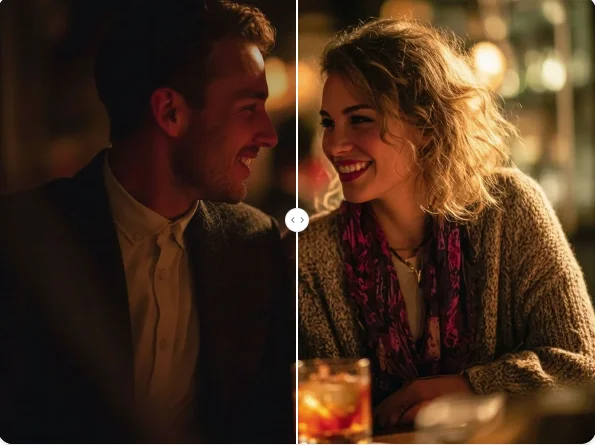
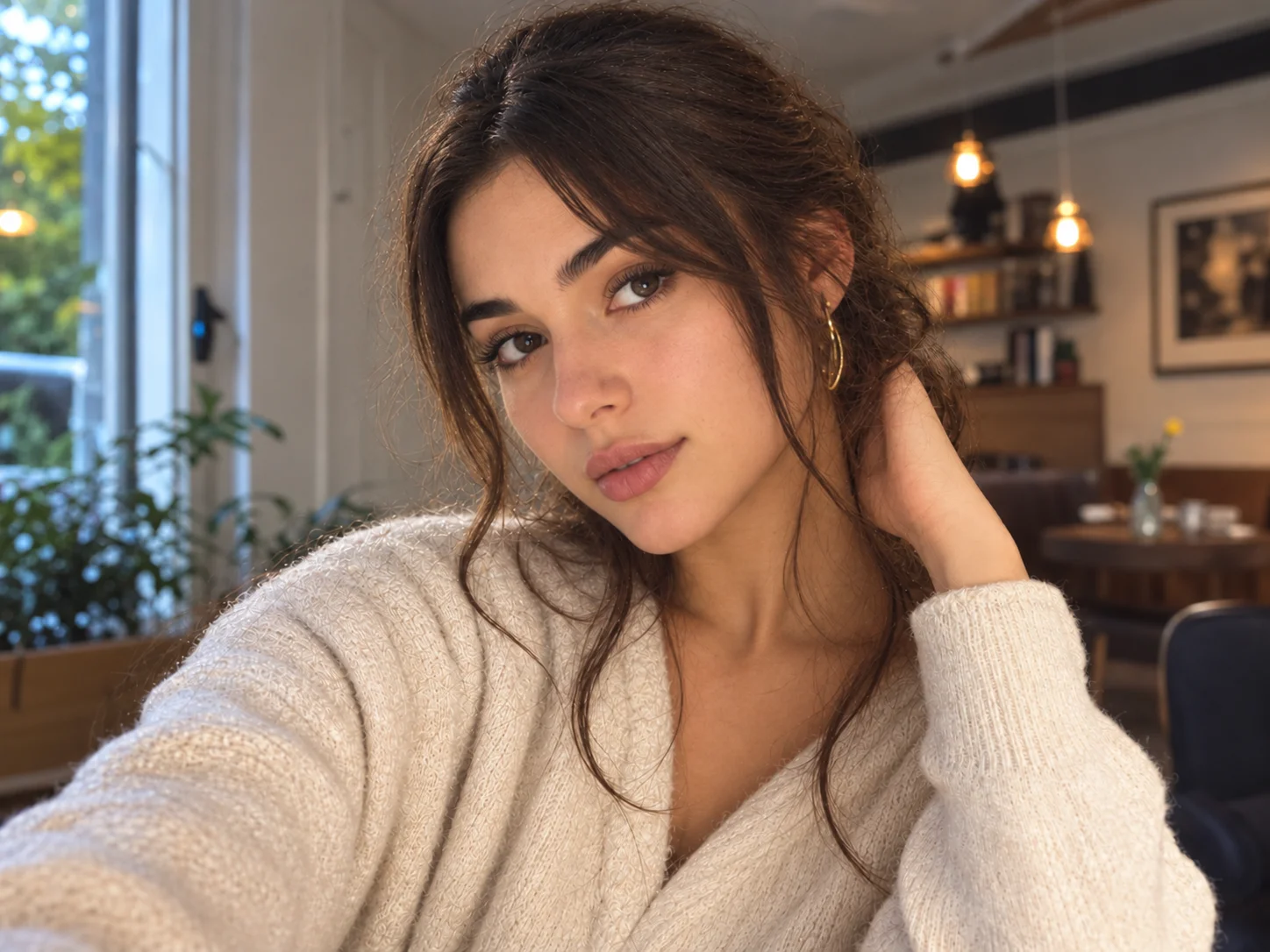
Darken image online without losing important details. Adjust brightness, improve mood, reduce overexposure, and create darker images directly in your browser.