
Note: Auto only supports 1K. 1:1 does not support 4K.
Remove Color from Image with AI
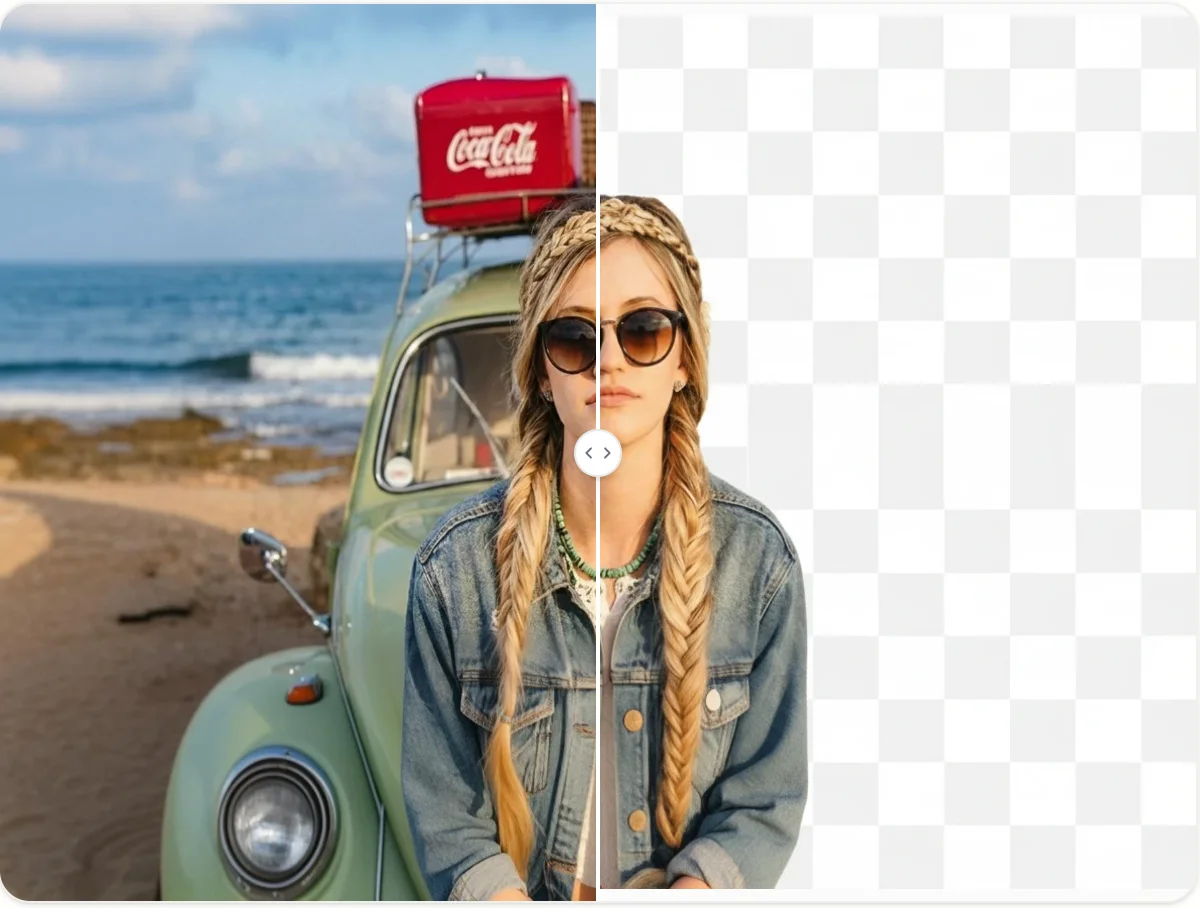
Upload a portrait, product photo, logo, or graphic. The tool identifies the foreground, removes the surrounding background color, and returns a transparent image while preserving hair, fur, textures, and complex edges.


How to Remove Color from Image in 3 Steps
Upload Your Image
Choose a photo or graphic with a foreground subject and the background color you want to remove.
Generate the Transparent Result
Start the process and let AI separate the subject from the colored background while retaining visible edge details.
Review and Download
Inspect the cutout, then download the transparent result for product images, layouts, posts, or further editing.
Why Choose Our Remove Color from Image Tool
Preserve Fine Subject Details
The image color remover focuses on keeping visible hair strands, fur, product textures, and intricate outlines while clearing the background color.
Handle Different Image Types
Use the same workflow for portraits, product photos, logos, signatures, and creative graphics with simple or visually busy backgrounds.
Prepare Transparent Assets for New Designs
Remove background color to create a flexible transparent asset that is easier to place into presentations, storefronts, social posts, and other compositions.
Who Use Qimg AI
Creators
Create clean cutouts for thumbnails, posts, stickers, and visual projects without manually tracing every edge.
Designers
Separate subjects from colored backgrounds, then place them into new layouts and continue refining the composition.
Marketers
Prepare reusable product and campaign assets for storefronts, ads, presentations, and multiple publishing formats.
FAQs About Remove Color from Image
It means removing the colored background around the main subject and producing a transparent result. It does not turn the entire image black and white.
Yes. The workflow is designed to return the isolated subject on a transparent background so it can be reused in other designs.
It aims to preserve visible fine details while separating the foreground, although results can vary with image resolution, lighting, and the similarity between subject and background colors.
No. This page is primarily for removing the background color around a subject. Removing isolated marks or a specific color inside the subject may require a targeted eraser or inpainting tool.
Images with a clear subject, visible edges, and reasonable contrast between the foreground and background usually provide the strongest separation cues.
Discover More on Qimg AI
Qimg AI is your go-to AI image toolkit for generating, editing, and enhancing photos and artwork.



Remove Color from Image for Clean, Flexible Assets
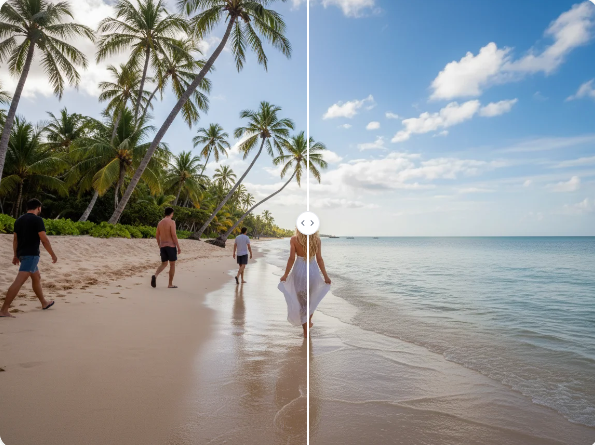
Upload an image, remove the colored background, and prepare a transparent subject for your next design or publishing workflow.