
Note: Auto only supports 1K. 1:1 does not support 4K.
Image Color Inverter
Works great for quick edits, design tweaks, or even if you're figuring out how to invert colors on a Chromebook without extra apps.


How to Invert Image Colors
Upload Your Image
Upload the image you want to edit directly in your browser.
Apply Color Inversion
Click Invert Colors to instantly reverse all colors and create a negative effect.
Download the Result
Preview the inverted image, then download it or try again with another file.
Why Choose Qimg AI Color Inverter
Invert Colors Online with One Click
Qimg AI's color inverter lets you quickly transform any image into its negative version directly in your browser. Just upload your image and the tool will invert colors automatically, with no need for editing skills or software installation. This simple workflow makes it easy to experiment with visuals, fix contrast issues, or create eye-catching effects in seconds.
Accurate Color Reversal with Clean Visual Results
The image color inverter processes each pixel precisely, ensuring smooth color transitions and balanced contrast after inversion. Whether you are working with photos, graphics, or illustrations, the output remains sharp and visually consistent. If you are wondering how to invert colors on Chromebook, this tool works seamlessly online without requiring any extensions or additional apps.
Fast, Free, and Works on Any Device
You can use this color inverter on any device, including laptops, tablets, and Chromebooks, with no downloads required. The process is fast, allowing you to invert multiple images without slowing down your workflow.
Who Use Qimg AI
Creators
Create visuals faster without design skills. Turn ideas into images, thumbnails, social posts, and creative assets in seconds.
Designers
Accelerate your creative workflow. Use Qimg AI to generate concepts, references, and visual directions, then refine them into production-ready designs.
Marketers
Produce high-converting visuals on demand. Create ads, campaign visuals, and branded images quickly.
FAQs About Color Inverter
To invert colors on a Chromebook, you can use the built-in accessibility shortcut: press Ctrl + Search + H to turn on color inversion, press the same keys again to turn it off. Alternatively, you can use Qimg AI's color inverter online tool — just upload your image in the browser, and instantly invert colors without changing system settings.
Chromebook's system setting inverts all screen colors, not just images. If you only want to invert colors for a specific picture, use an image color inverter like Qimg AI. Upload your image, apply inversion, and download the result — without affecting your entire screen.
You can use Qimg AI's invert colors online free tool: upload your image, the tool automatically inverts the colors, and download the processed image instantly. No apps, downloads, or editing skills are required.
A color inverter is a tool that reverses the colors of an image to create a negative effect. It's commonly used to adjust contrast and visibility, create artistic or stylized visuals, fix images with poor color balance, or prepare graphics for design or printing.
No. The color inverter processes pixels accurately and preserves resolution and details, so the inverted output stays as sharp as your original.
Discover More on Qimg AI
Qimg AI is your go-to AI image toolkit for generating, editing, and enhancing photos and artwork.


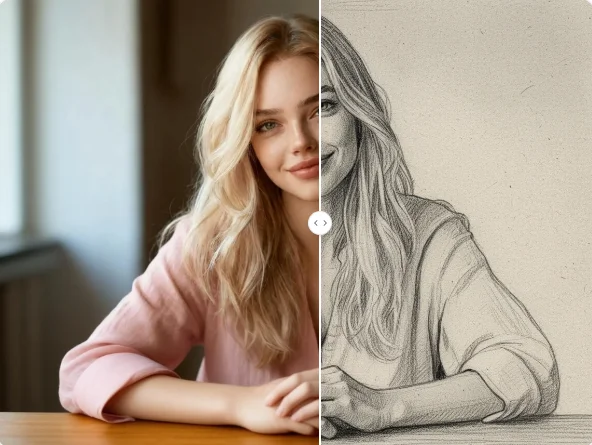

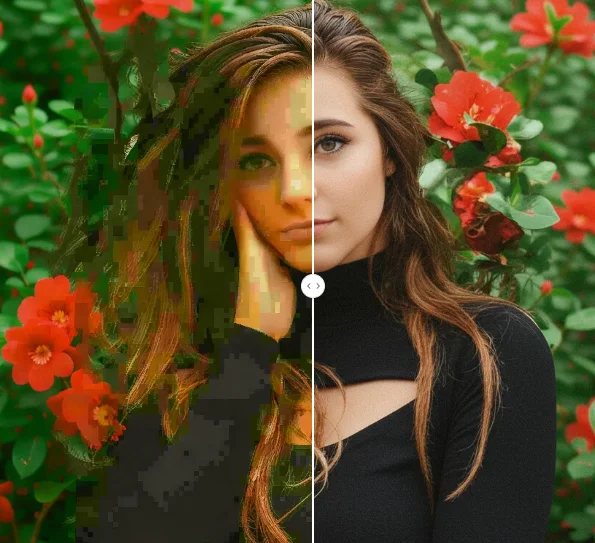
Invert Image Colors Online Free
Invert colors on any image directly in your browser. Use this simple color inverter tool to adjust contrast, create negative effects, or quickly fix visuals — even on Chromebook.