
Note: Auto only supports 1K. 1:1 does not support 4K.
Before and After Photo Maker
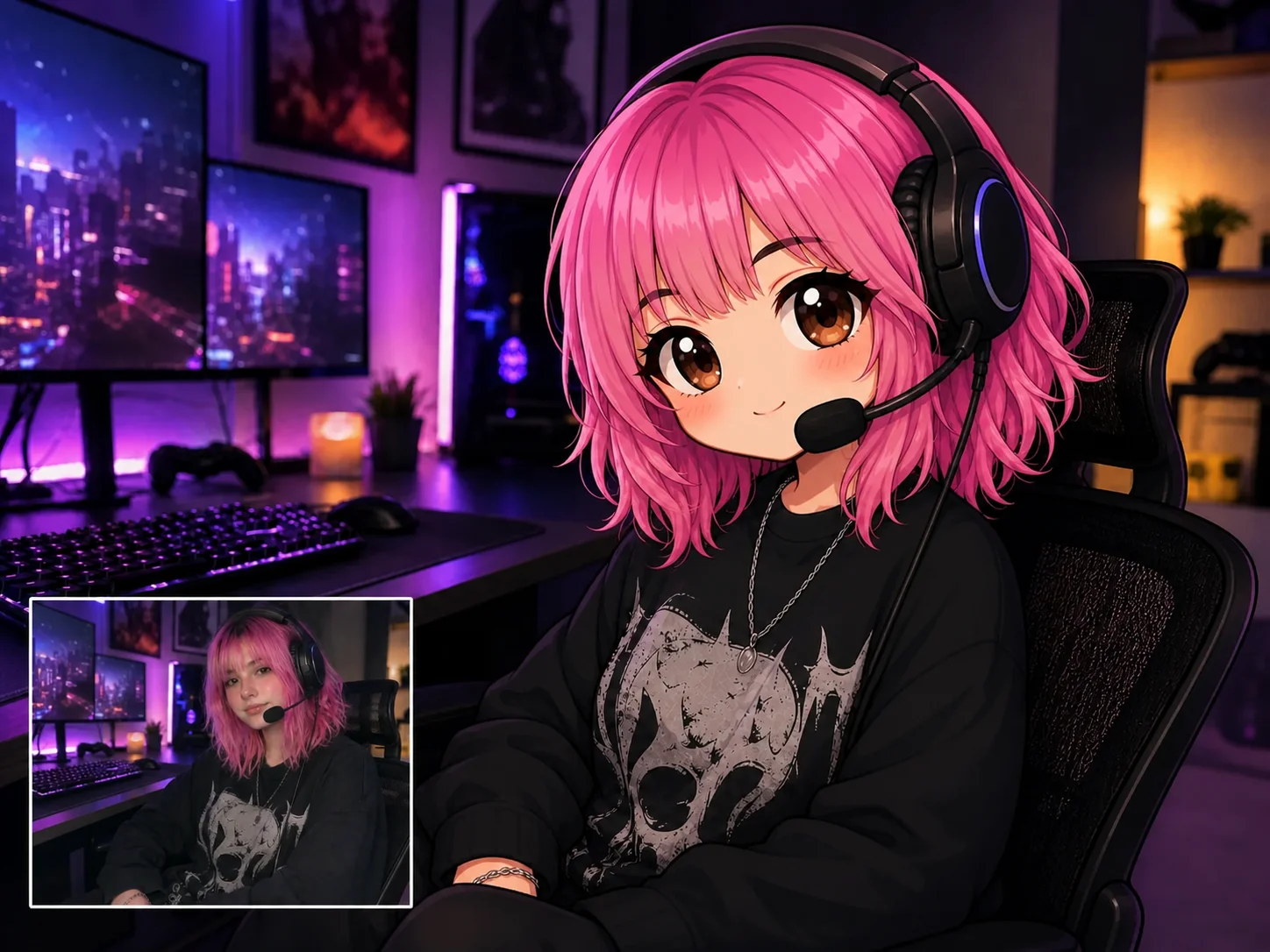
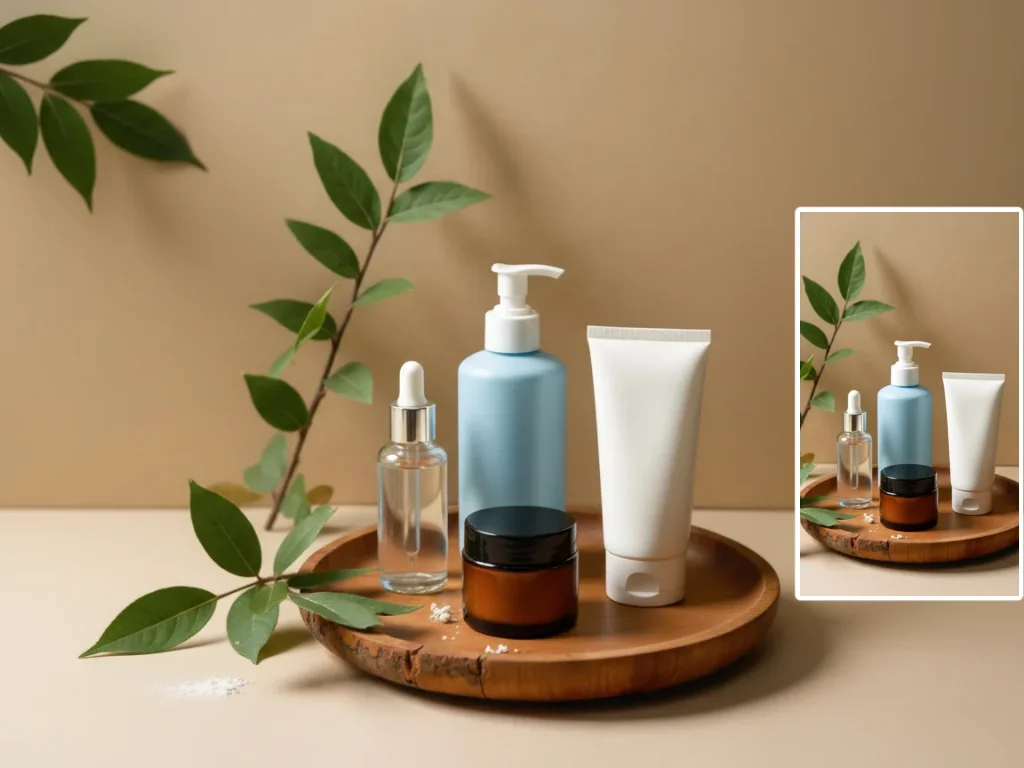
Upload a before photo and an after photo to combine them in one polished comparison. The after image fills the frame while the original appears in a clear bottom-left inset.
How to Use Before After Photo Maker
Upload
Add the original before photo first, then upload the completed after photo. Clear images with related subjects and compatible framing make the comparison easier to understand.
Generate
Generate the comparison layout. The after photo becomes the large main image, while the unchanged before photo is placed in a bordered inset at the bottom left.
Download
Review both photos, confirm that the inset does not cover important details, and download the finished comparison in your selected aspect ratio.
Why Choose Before After Photo Maker
Show the Full Result and Original Together
Give the after photo most of the canvas so viewers can inspect the final result, while keeping the original visible in a compact inset for immediate reference.
A Clear Comparison Without a Split Screen
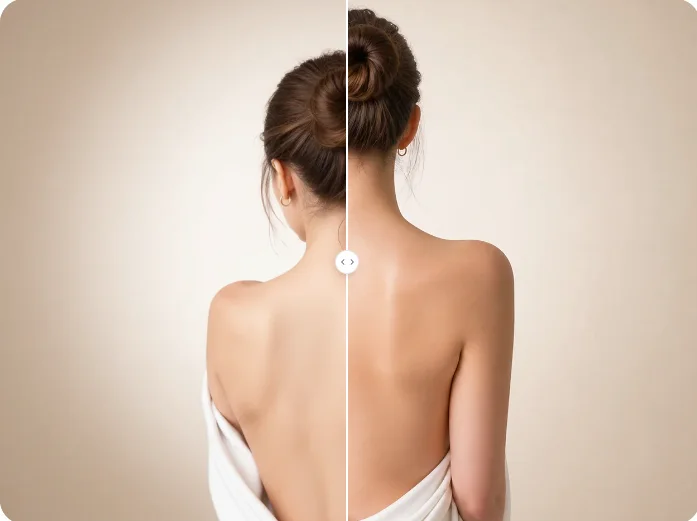
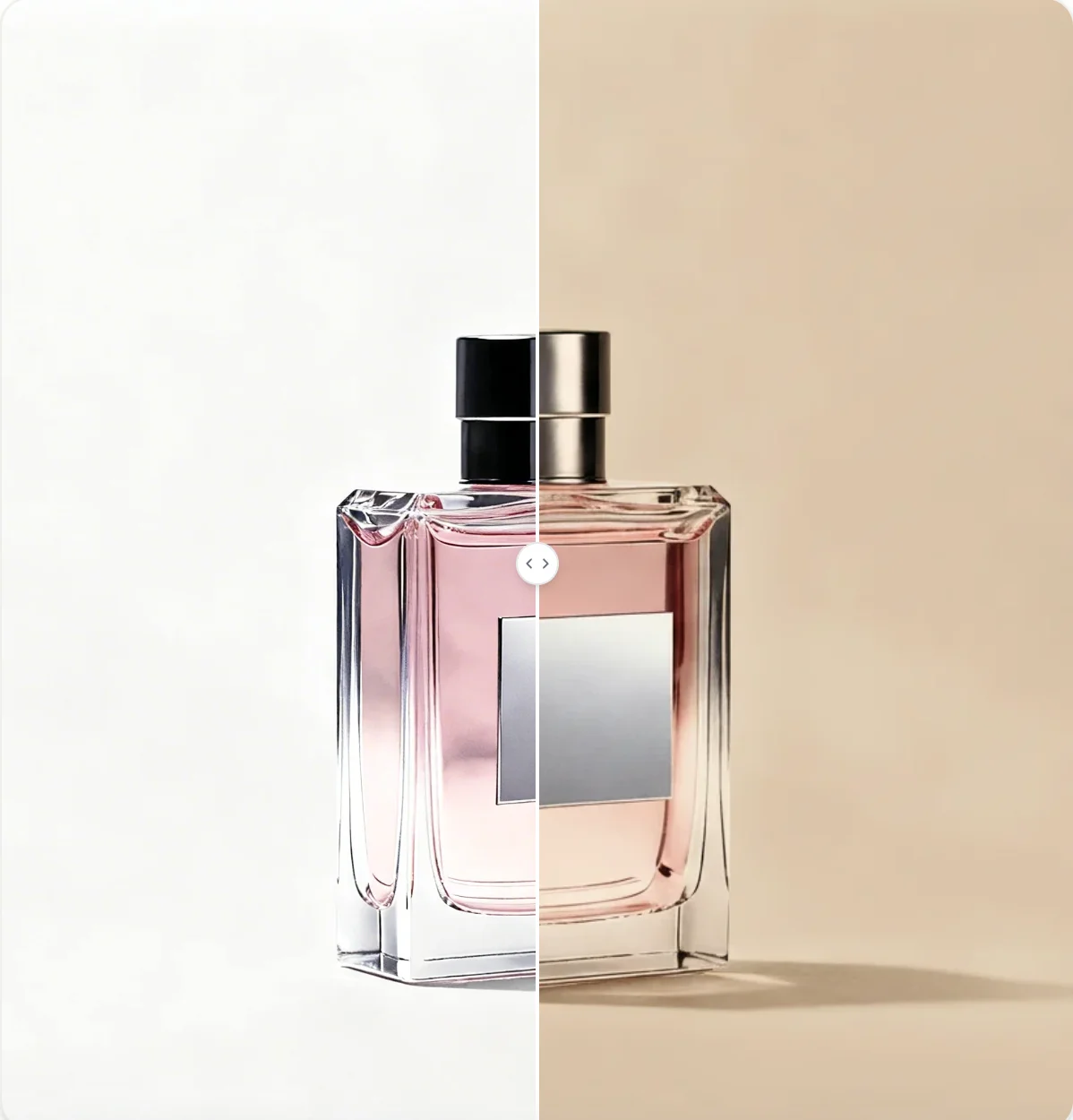
Instead of reducing both photos to equal panels, the picture-in-picture layout keeps the finished image visually dominant and still makes the transformation easy to recognize.
Keep Both Source Photos Recognizable
The layout uses the uploaded before and after photos as its visual source, preserving their subjects, colors, and important details while arranging them into one balanced composition.
Who Use Qimg AI
Creators
Present edits, makeovers, artwork transformations, and progress updates in one shareable image that makes the visual difference clear at a glance.
Designers
Build concise comparison visuals for portfolios, design reviews, case studies, and client presentations without manually arranging two separate images.
Marketers
Turn product improvements, renovation results, campaign edits, and service outcomes into focused comparison assets for ads and social content.
FAQs About Before After Photo Maker
A before and after photo maker combines an original image and a completed result into one comparison. This layout displays the after image as the main visual and keeps the before image visible in a smaller inset.
Upload the original before photo first and the completed after photo second. Qimg AI uses that order to place the before photo in the inset and the after photo across the main canvas.
No. This workflow is designed to arrange two results you already provide. Upload the original and transformed versions, and the tool will turn them into a clear picture-in-picture comparison.
Yes. The images can have different dimensions, but related framing and clearly visible subjects usually produce a more balanced comparison with fewer important details near the inset area.
Use it for photo edits, design revisions, fitness progress, beauty results, renovations, product improvements, artwork transformations, portfolio cases, and social posts.
Discover More on Qimg AI
Qimg AI is your go-to AI image toolkit for generating, editing, and enhancing photos and artwork.

Create with Before and After Photo Maker
Upload your original and finished photos, place the result across the main canvas, and keep the before image visible in a clean corner inset.