
Note: Auto only supports 1K. 1:1 does not support 4K.
Color Correction for Natural-Looking Photos
Upload a portrait, product photo, landscape, or everyday image with uneven color. Adjust the editable prompt to correct white balance, exposure, contrast, saturation, and unwanted color casts while preserving the subject and original details.
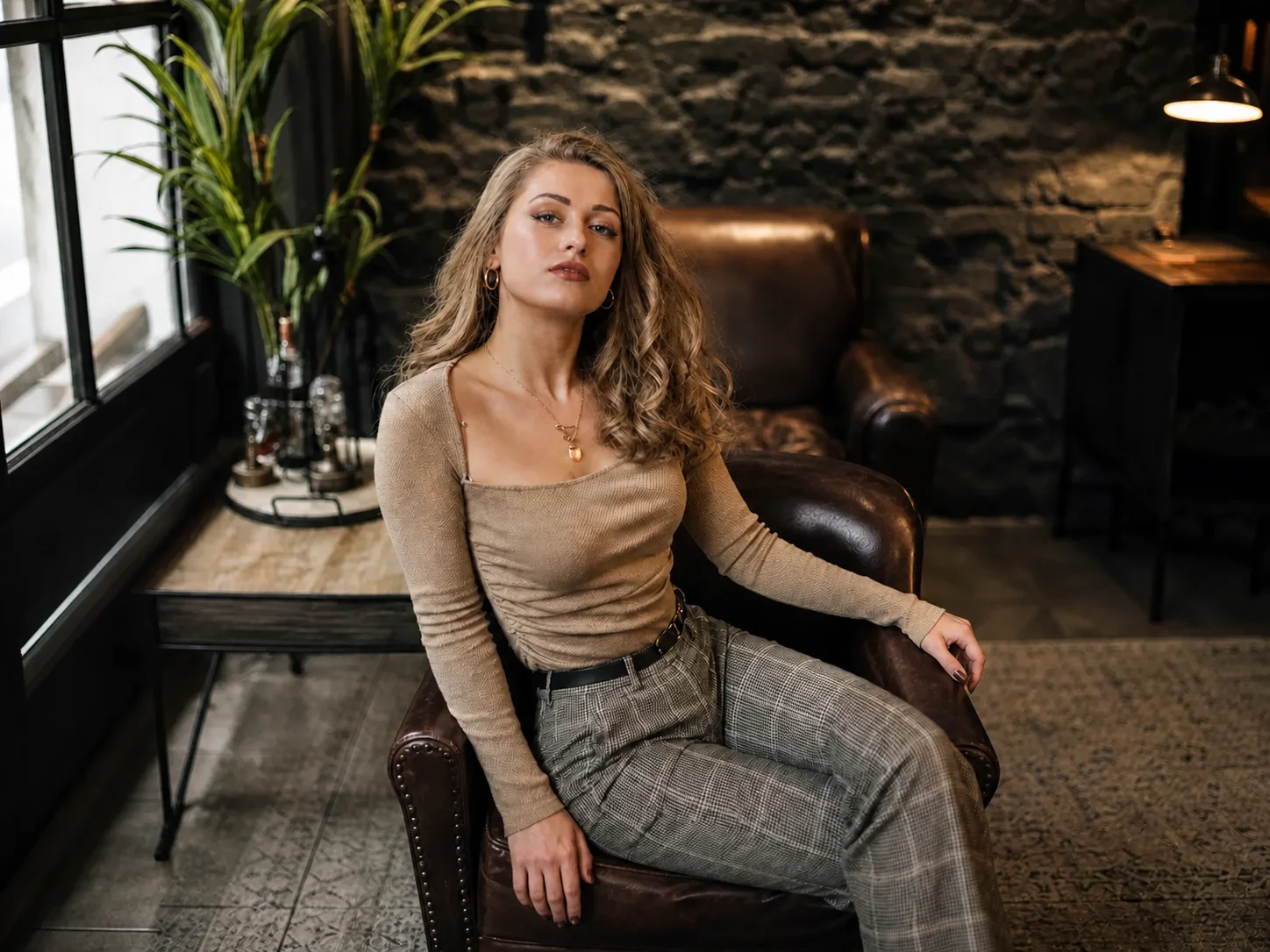
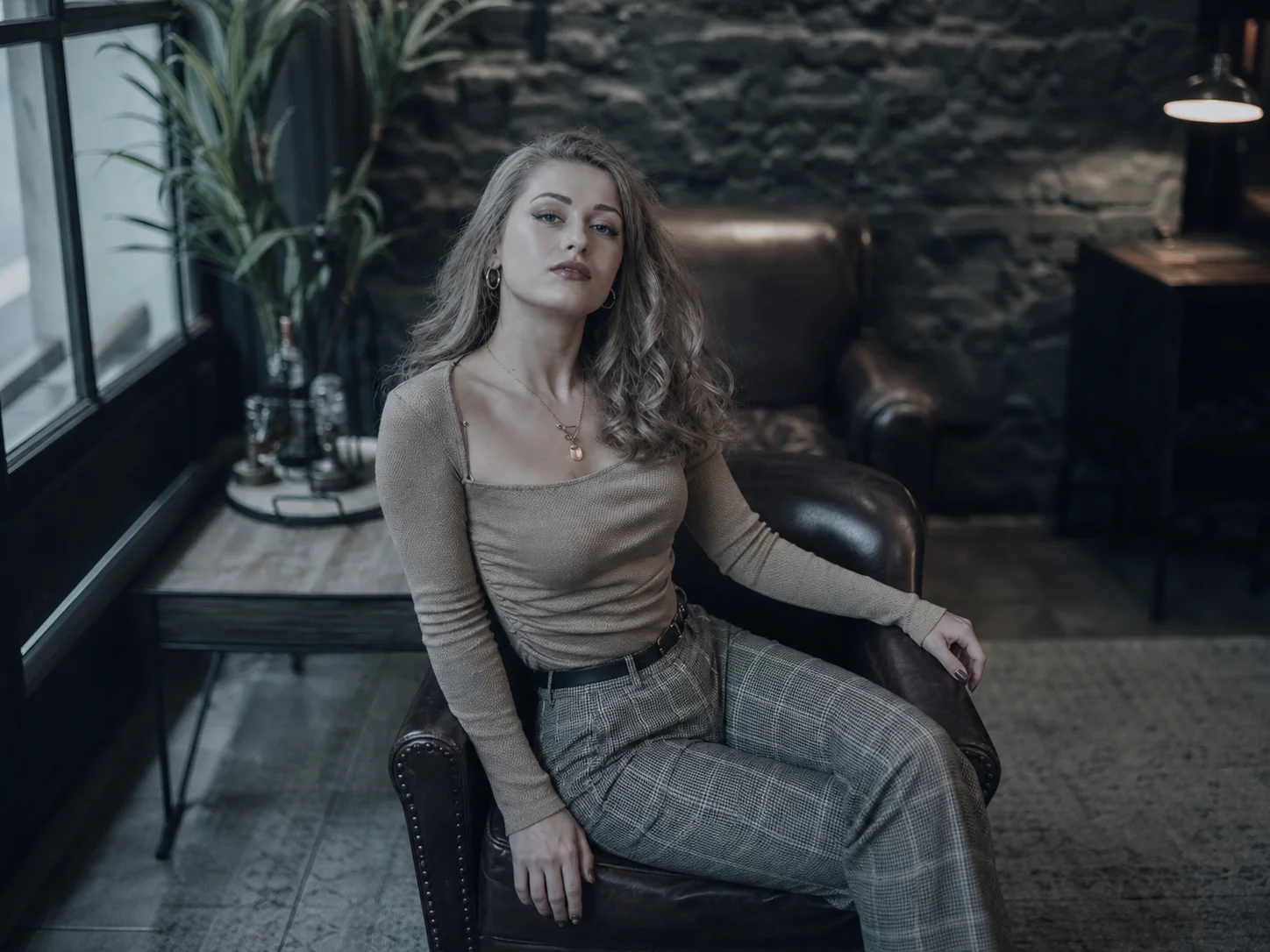
How to Use Color Correction
Upload
Choose a clear photo with an unwanted yellow, blue, red, pale, dull, or overly warm color cast.
Generate
Edit the prompt to describe the color issue and desired balance, then generate a corrected version with coordinated light and tones.
Download
Compare the result with the original, check skin tones and important details, then download the corrected image.
Why Choose This Color Correction Tool
Repair Unwanted Color Casts
Reduce yellow, blue, green, red, or overly warm casts so portraits, products, and scenes return to a cleaner and more believable color balance.
Balance Light, Contrast, and Saturation Together
Correct exposure and tonal separation alongside color intensity, avoiding edits that fix one area while leaving the rest of the image visually disconnected.
Preserve Natural Skin and Image Detail
Keep faces, hair, products, backgrounds, textures, and composition recognizable while improving the overall color relationship across the photo.
Who Use Qimg AI
Creators
Restore natural color to portraits, travel photos, lifestyle images, and social content before publishing or further editing.
Designers
Establish cleaner white balance, tonal relationships, and color consistency before bringing images into a broader visual system.
Marketers
Improve product photos, campaign visuals, and promotional assets so colors look consistent and subjects remain easy to evaluate.
FAQs About Color Correction
Color correction adjusts white balance, exposure, contrast, saturation, and color casts so an image looks more balanced and natural while retaining its original content.
It can help with yellow or blue casts, overly warm phone photos, pale skin tones, dull product images, weak contrast, washed-out colors, and uneven lighting.
Yes. The prompt can request natural skin-tone correction while preserving the person's identity, facial structure, hair, clothing, pose, and surrounding background.
No. The intended edit focuses on light and color relationships rather than replacing subjects or rearranging the scene. Clear instructions help keep the original composition intact.
Compare the corrected image with the original and review skin tones, neutral whites, product colors, shadow detail, highlights, and background consistency.
Discover More on Qimg AI
Qimg AI is your go-to AI image toolkit for generating, editing, and enhancing photos and artwork.
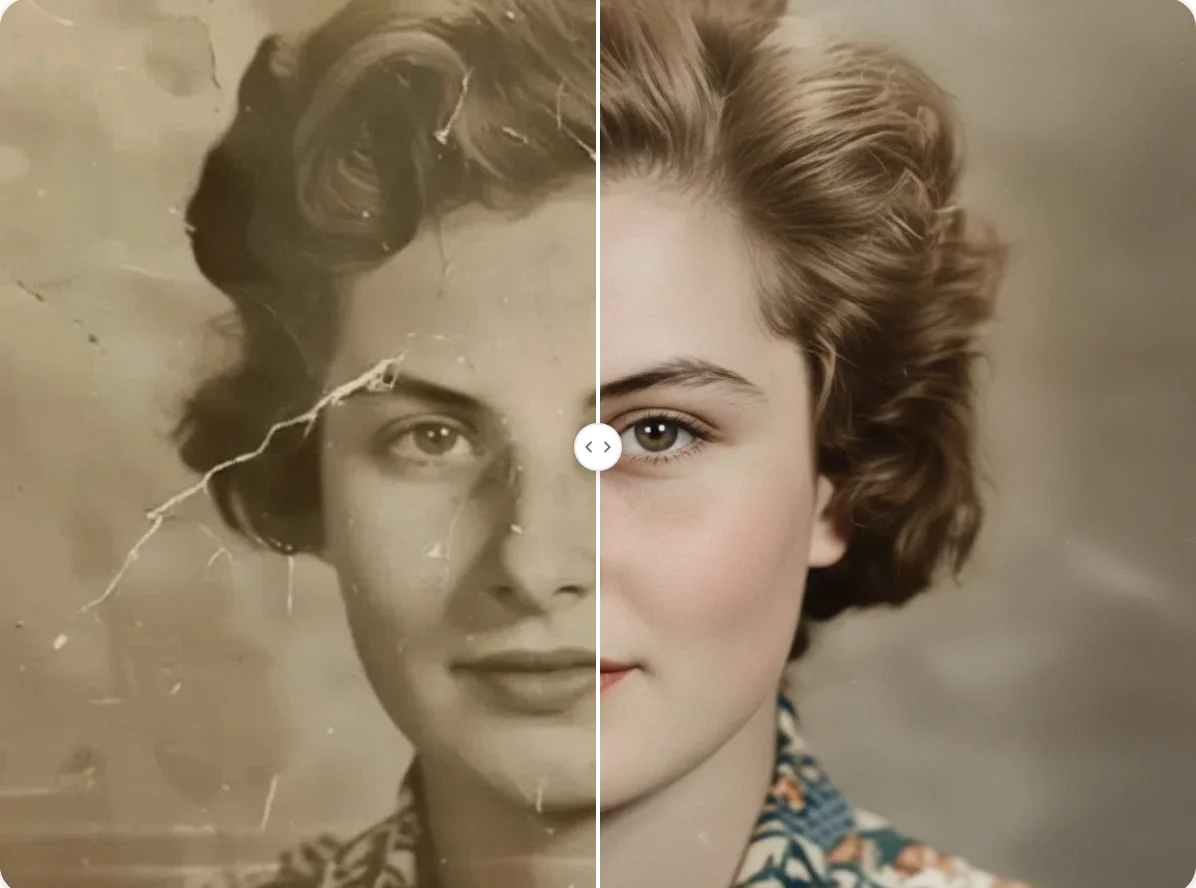
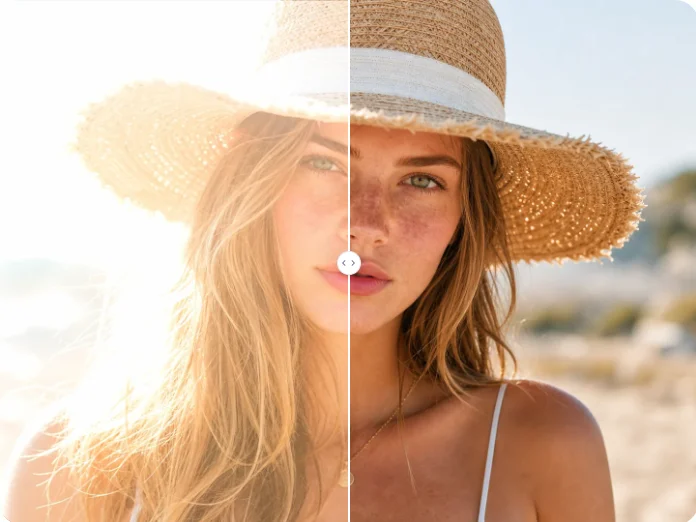
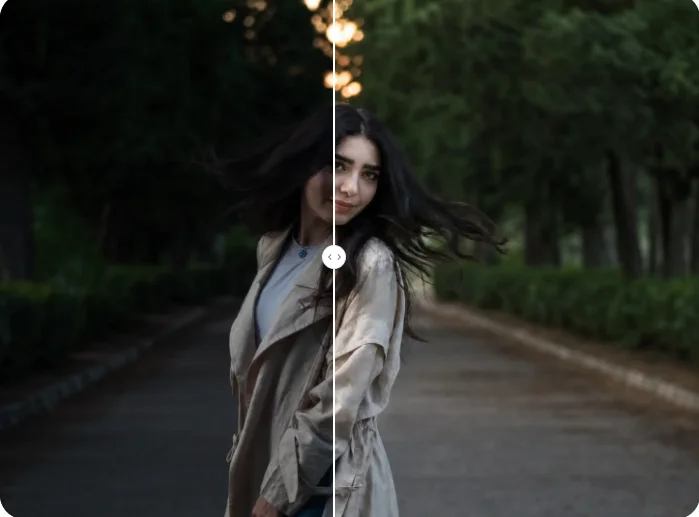
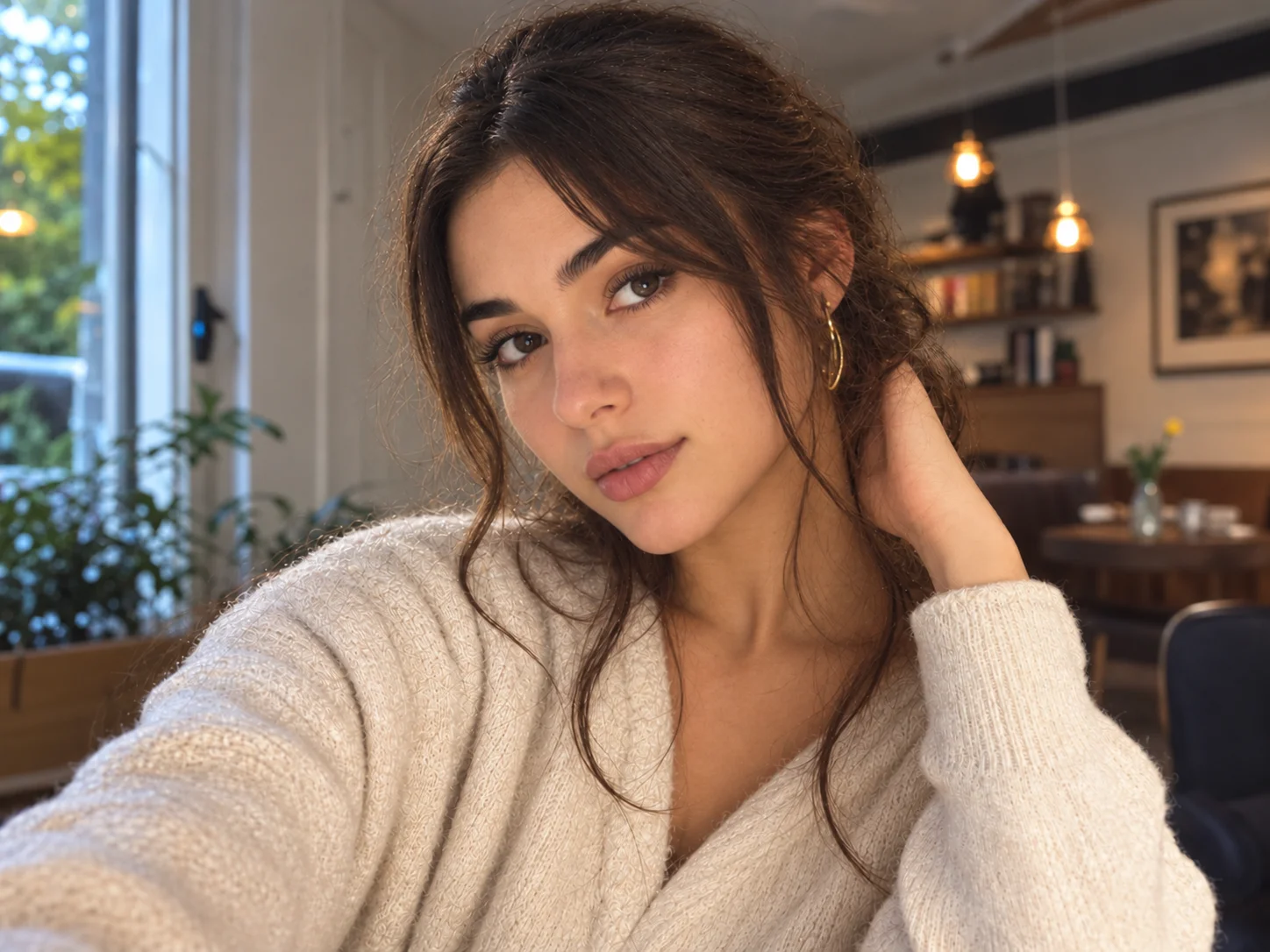
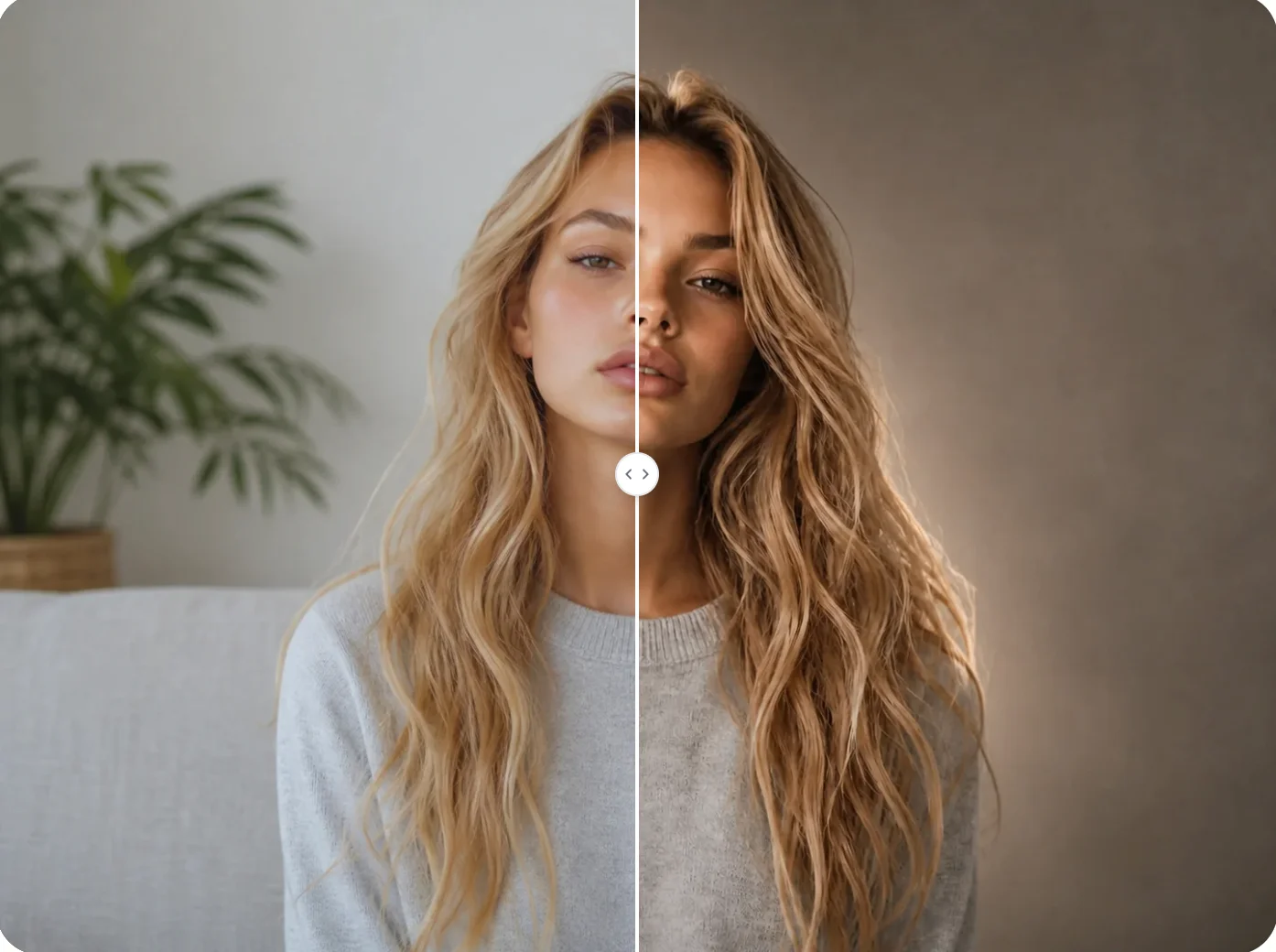
Restore Natural Color with Color Correction
Upload a photo, refine the editable prompt, and balance white balance, exposure, contrast, and saturation while keeping the original subject and details recognizable.